
Your LinkedIn portrait is often seen before anyone reads your headline, job title, or experience. A polished, current photo helps recruiters, clients, colleagues, and potential employers recognize you quickly and feel more confident reaching out. If you have changed roles, updated your personal brand, or are still using a cropped group photo from several years ago, it may be time for a refresh.
Knowing how to update LinkedIn portrait settings is simple. Choosing the right image before you upload it takes a little more thought. The goal is not to look overly posed or heavily edited. It is to look like the capable professional someone will meet in a video call, office, open house, audition, or client meeting.
How to Update LinkedIn Portrait Photos
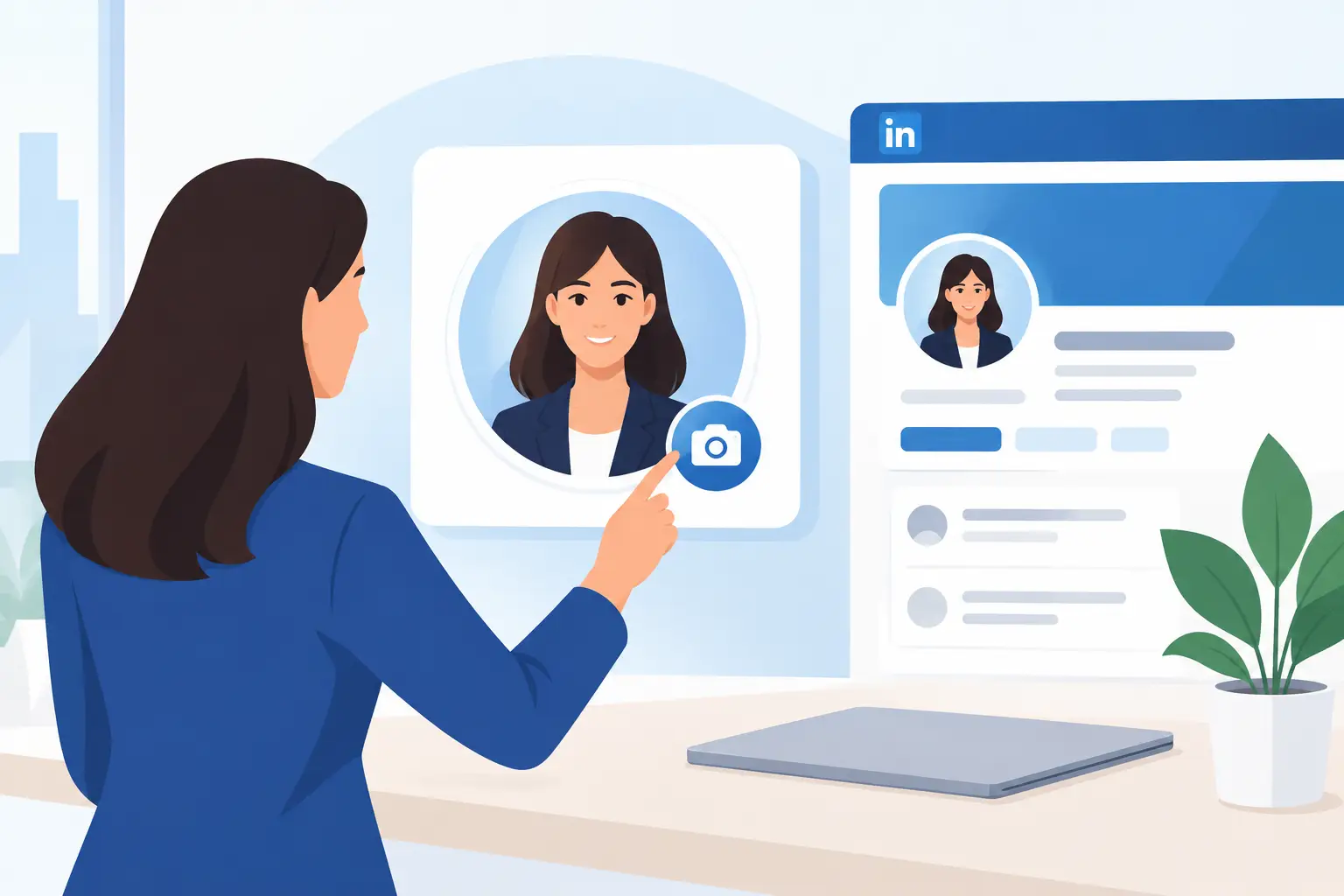
On a desktop computer, sign in to LinkedIn and select your profile photo or the “Me” icon at the top of the page. Choose “View Profile,” then move your cursor over your existing profile image. Select the camera or edit icon to open the photo settings.
From there, choose the option to upload a new photo and select the portrait file from your computer. LinkedIn will let you reposition and crop the image inside its circular frame. You can also adjust basic settings such as zoom, brightness, contrast, filters, and visibility before saving.
On the LinkedIn mobile app, open your profile, tap your existing photo, and select the edit or camera icon. You can upload an image from your phone’s library or take a new photo. Uploading a prepared professional headshot is usually the better choice, since it gives you more control over lighting, expression, background, and image quality.
Before you hit save, take a moment to preview the small circular version of your image. Most people will see your portrait at a small size in search results, comments, messages, and connection requests. If your face looks too small or your background is distracting, adjust the crop.
Choose a Photo That Looks Current and Credible
A LinkedIn profile photo does not need to be stiff, but it should be intentional. Use a recent portrait that reflects how you look now, especially if you meet clients, interview for jobs, attend networking events, or represent a company publicly.
For most professionals, the strongest choice is a clear head-and-shoulders image with natural eye contact and a relaxed expression. A genuine slight smile often feels more approachable than a serious corporate pose. Realtors may want a polished, welcoming look that builds trust. Job seekers may prefer a clean, straightforward headshot that feels confident and prepared. Entrepreneurs and personal brands can show a little more personality, as long as the image still suits their industry.
Your clothing should match the level of professionalism expected in your field. A blazer can work well for corporate leaders, financial professionals, and legal teams. A neat shirt, blouse, sweater, or business-casual jacket may be a better fit for creative professionals, consultants, and small business owners. The right choice depends on who you want to connect with, not on copying someone else’s style.
Avoid uploading a vacation snapshot, a dark car selfie, a group photo with other people cropped out, or an old image that no longer resembles you. These photos can make a profile feel unfinished, even when the rest of your LinkedIn experience is strong.
Get the Crop Right for LinkedIn
LinkedIn displays profile photos in a circle, which can cut off more of an image than expected. Start with a portrait where your face is the obvious focal point. Your eyes should sit around the upper third of the frame, with enough room above your head that the crop does not feel cramped.
A close crop works best in most cases. Your face should occupy a meaningful portion of the circle without cutting off your chin, forehead, or sides of your head. If you use a full-body photo or a wide environmental portrait, you may look too small once LinkedIn reduces the image.
Keep the background simple and separate from your clothing. A neutral studio background, softly blurred office setting, or clean outdoor backdrop can all work well. What matters is contrast. If you wear a dark jacket against a dark wall, your outline may disappear at a small size. If the background is bright and busy, viewers may look at it instead of you.
When possible, upload a high-resolution square image. LinkedIn handles the circular crop, but a square source file gives you room to position the portrait properly. A sharp image also holds up better across desktop and mobile screens.
Use Filters Carefully
LinkedIn includes basic editing tools, but restraint is usually the best approach. Slight brightness or contrast adjustments can help if needed. Heavy filters, dramatic color shifts, skin smoothing, or extreme sharpening can make a professional portrait feel less authentic.
A good headshot should look polished, not altered. Professional editing can reduce temporary distractions and improve the overall image while keeping your natural features intact. The people who meet you should feel that your profile photo represents you accurately.
Check Your Profile Photo Visibility
After you upload your new image, confirm who can see it. LinkedIn gives you control over profile photo visibility, such as making it visible to your network, connections, or all LinkedIn members.
For most people using LinkedIn for career growth, business development, recruiting, or networking, broader visibility makes sense. A visible portrait helps people recognize you when you appear in search results or send a connection request. It also makes your profile feel more personal and complete.
There are exceptions. If privacy is a concern because of your role, industry, or personal circumstances, choose the setting that is right for you. Just understand the trade-off: a limited-visibility profile photo may reduce recognition among new contacts.
Make Your Portrait Match the Rest of Your Profile
Updating the photo is a good reason to review the rest of your LinkedIn presence. Your headline, current position, About section, and banner image should support the same professional message. A modern headshot paired with an outdated job title can create confusion.
Think about what someone should understand within a few seconds of visiting your profile. If you are a realtor, they should quickly see your market, specialty, and professional approach. If you are seeking a new role, your target skills and current experience should be easy to find. If you run a business, your portrait should reinforce the confidence and personality behind your services.
Consistency matters if you use your headshot across a company website, speaker bio, email signature, portfolio, or business materials. You do not need the exact same crop everywhere, but using photos from the same session creates a more recognizable personal brand.
When a Professional Headshot Is Worth It
You can update LinkedIn using a well-lit phone photo, particularly if you need a quick refresh. But for high-stakes job searches, leadership roles, client-facing work, acting submissions, real estate marketing, or company teams, a professional session often makes a noticeable difference.
The value is not just the camera. A professional photographer helps with the parts that make many people uneasy: where to stand, what to do with your hands, how to angle your face, which expression feels natural, and how to choose a background that supports your goals. The result should still look like you, only more confident, clear, and prepared.
For professionals in Cambridge, Kitchener, Waterloo, and Guelph, RP Photography provides guided portrait sessions designed to make the process comfortable, including fully edited images suited for LinkedIn and other professional uses.
Your LinkedIn portrait does not have to be perfect. It just needs to be current, clear, and believable enough that the right person feels comfortable starting a conversation.